The Sweet Spot: Best Local AI Models for 8GB VRAM GPUs
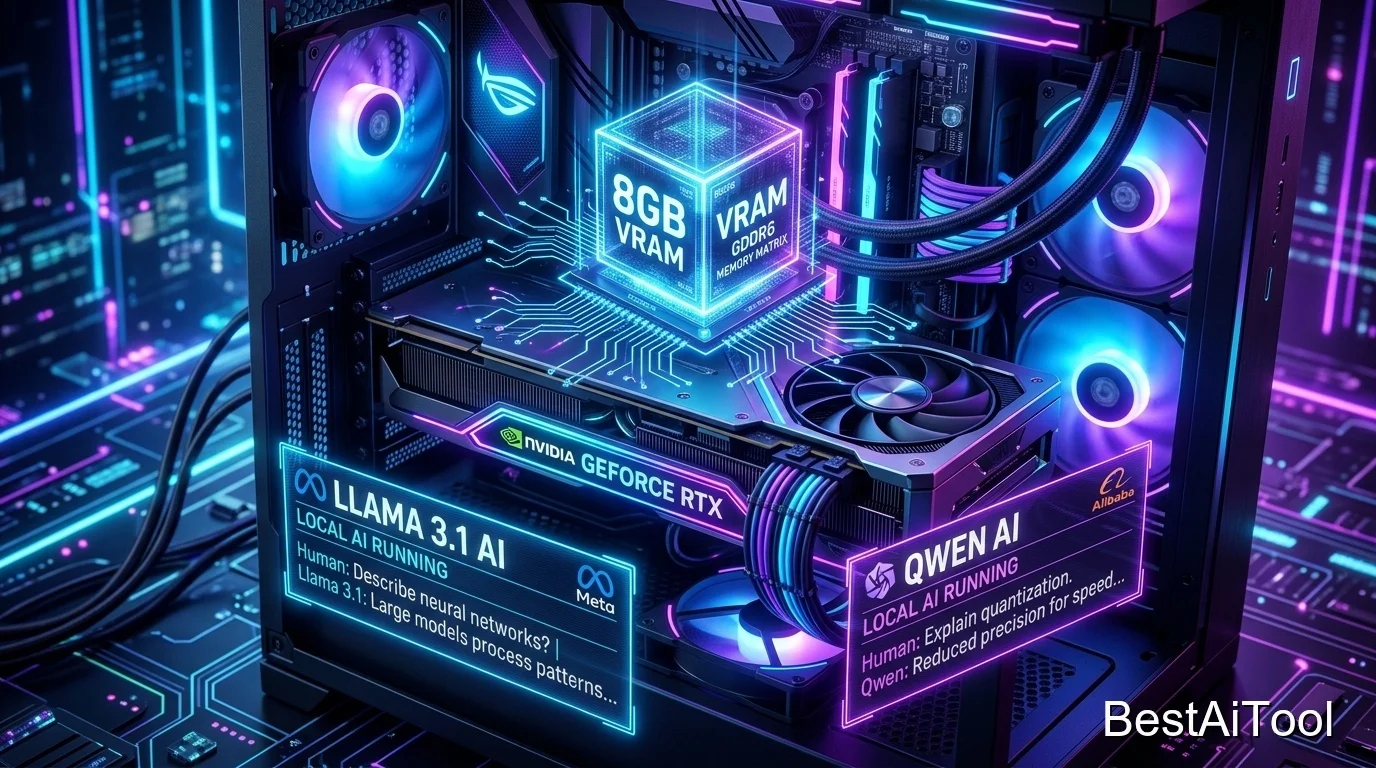
If your graphics card has 8GB of VRAM — think RTX 3050 Ti/3060, RTX 4060, RTX 2070, or an AMD RX 6600/6700 — you're sitting in what a lot of AI hobbyists call the "sweet spot." You get genuinely capable, ChatGPT-like models running fully offline, with fast responses, and none of the compromises of the entry-level tier.
This guide walks you through the entire setup from scratch, even if you've never opened a terminal before.
Is your computer in this tier?
| Spec | This Tier Requirement |
|---|---|
| GPU VRAM | 8GB (RTX 3050 Ti/3060, RTX 4060, RTX 2070/2070S, RX 6600/6650 XT) |
| System RAM | 16GB recommended |
| Best Model Size | 7B–9B parameters (Q4 quantization) |
| Realistic Use Cases | Full chatbot use, coding help, document summarizing, reliable tool/agent use |
Step 1: Install Ollama
Ollama is the simplest way to run these models — it handles downloading, memory management, and GPU detection automatically.
Windows:
- Visit ollama.com/download and click Download for Windows.
- Open the downloaded
OllamaSetup.exefile and click Install. No extra configuration needed. - Ollama installs a small icon in your system tray — that means it's running in the background, ready to use.
Mac:
- Visit ollama.com/download and click Download for macOS.
- Unzip the download, drag the Ollama app to your Applications folder, and open it.
- Approve the prompt to install the command-line tool.
Linux:
Open a Terminal and run:
Confirm it's installed: In Terminal/Command Prompt, type:
You should see a version number printed back.
Step 2: Check your GPU is being detected (optional but useful)
If you have an NVIDIA card, open Terminal/Command Prompt and type:
This shows your GPU name and available VRAM — a good sanity check before you start. Ollama will automatically use your GPU once it detects it; you don't need to configure anything manually.
Step 3: Install and run models for your tier
Every model uses the same simple pattern: ollama run <model-name>. The first time you run a command it downloads the model (a few GB — grab a coffee), and every time after that it launches in seconds.
Meta Llama (best all-round balance)
Llama 3.1 8B is the classic "does everything well" choice — chatting, writing, general knowledge, and light coding.
Alibaba Qwen (best for coding and tool use)
Qwen3 8B is currently one of the strongest small models for writing and explaining code, and it's very reliable if you plan to hook it up to apps or "agent" tools later.
Google Gemma (best for documents and multiple languages)
or, if you want to push a bit further and still fit comfortably in 8GB:
(the 12B version runs at reduced quantization on 8GB cards — try it, and drop back to gemma3:4b if it feels sluggish.)
Microsoft Phi (fastest responses, great for older 8GB cards)
If your 8GB card is a bit older, Phi-4-mini gives you very snappy responses while still being a smart, well-rounded model.
Mistral (great tokens-per-second, good for real-time chat)
Mistral 7B is known for being one of the fastest-responding models at this size — a good pick if speed matters more than squeezing out the last bit of quality.
DeepSeek (best for step-by-step reasoning, like math and logic puzzles)
DeepSeek's models "think out loud" before answering, which makes them noticeably better at math, logic, and multi-step problems. Responses take a little longer to appear because of this extra thinking step — that's expected behavior, not a bug.
Step 4: Chat with your model
Once you see the >>> prompt, just type naturally:
Hit Enter. To leave the chat, type /bye.
Step 5 (optional): Get a proper chat window instead of the Terminal
If typing commands isn't your thing, install Open WebUI or LM Studio for a full graphical, browser-based chat interface that looks like ChatGPT — complete with chat history, model switching buttons, and file uploads. Both connect straight to the models you already downloaded with Ollama, so there's no need to re-download anything.
Tips for this tier
- 8GB is enough for full-length conversations — you generally won't need to worry about running out of memory for typical chat use.
- If you're building a coding assistant or agent (something that reads files and takes multiple steps), stick to Qwen3 8B — it handles that kind of longer, multi-step context best at this size.
- Only run one model at a time. Loading two 8B models simultaneously will overload 8GB of VRAM.
- DeepSeek feels slower than the others — that's normal, since it reasons through the problem first. Use it specifically for logic/math questions rather than quick chit-chat.
Visual Roadmap
Lost in the steps above? Here's the whole process at a glance:
Explore Prompt Library
Browse prompt packs and copy-ready prompts for coding, research, writing, and client work.
Explore Prompt Library →