32GB–64GB+ VRAM: Running 70B Models at Home
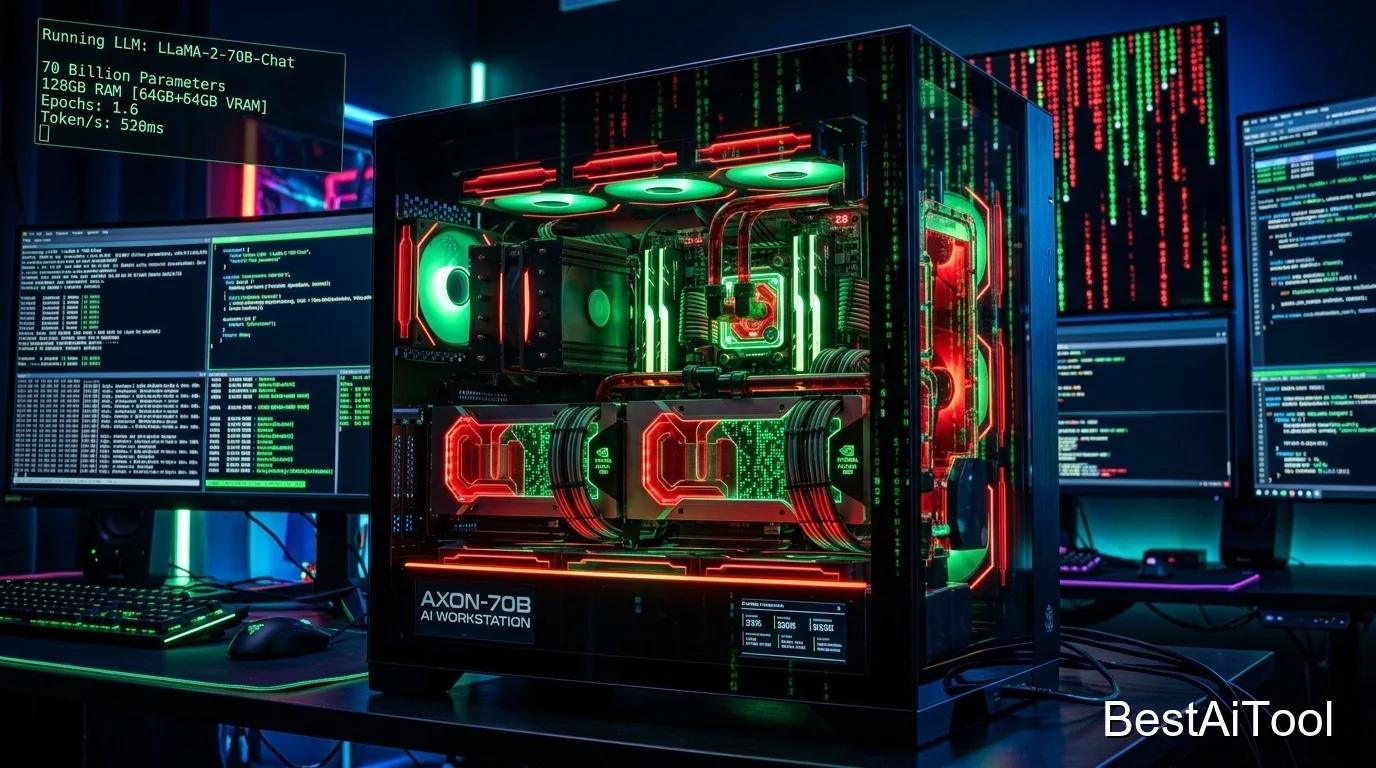
Here's a fact that still surprises people: you can run a genuine 70-billion-parameter AI model, entirely offline, on hardware that fits under your desk. No data center. No API bill. No internet connection required once it's downloaded. If you've got 32GB–64GB+ of VRAM — a workstation GPU, a multi-GPU desktop, or an Apple Silicon Mac Studio/MacBook Pro with a lot of unified memory — this guide gets you there.
This is the final guide in our local AI series, and the steps are exactly as beginner-friendly as the earlier ones — bigger hardware doesn't mean a harder setup.
Is your computer in this tier?
| Spec | This Tier Requirement |
|---|---|
| GPU VRAM | 32GB–48GB+ (RTX 5090, dual RTX 4090s, RTX 6000 Ada, A100/H100) |
| Apple Silicon | M-series Mac with 64GB–192GB unified memory (Mac Studio, high-spec MacBook Pro) |
| System RAM | 64GB+ recommended |
| Best Model Size | 70B parameters (dense) or large mixture-of-experts models |
| Realistic Use Cases | Frontier-adjacent reasoning, professional coding assistance, running multiple models at once, serving a small team |
Step 1: Install Ollama
Windows:
- Download the installer from ollama.com/download.
- Run it and click Install — no special settings needed even for multi-GPU setups; Ollama automatically spreads large models across all available GPUs.
Mac:
- Download from ollama.com/download, drag Ollama into Applications, and open it.
- Apple Silicon Macs use their unified memory automatically via Metal — there's no separate "GPU install" step required.
Linux:
If you're on a multi-GPU NVIDIA setup, make sure your NVIDIA drivers (525+) and CUDA are installed first — Ollama will automatically detect and use all your GPUs together.
Verify:
The second command should list all of your GPUs if you have more than one.
Step 2: Make sure you have the disk space
70B models are large downloads — often 40GB+ per model even compressed. Before starting, make sure you have at least 100GB of free disk space if you plan to try a couple of different models. On Windows/Mac you can change where Ollama stores its models via its settings if your main drive is short on space.
Step 3: Install and run models for your tier
Meta Llama (the benchmark 70B experience)
This is the full, best-quality version of Llama's 70B model — an excellent generalist for writing, reasoning, and knowledge-heavy questions, on par with many paid cloud assistants for everyday use.
DeepSeek (top-tier local reasoning)
This is the large distilled version of DeepSeek's flagship reasoning model — genuinely strong at hard math, logic, and multi-step problem solving. It "thinks" through problems step by step before answering, so responses take a bit longer, but the payoff in accuracy on tough questions is real. (Note: DeepSeek's true 671B flagship model is not practical to run locally even at this tier — this 70B distilled version is the local-friendly version of it.)
Alibaba Qwen (excellent large-scale coding and agent model)
Qwen3 72B is a strong choice if your main use case is software development, multi-file codebases, or building autonomous agent workflows that call tools and APIs.
Google Gemma (large-scale reasoning and multimodal)
Gemma tops out around 27B officially, so at this hardware tier you have plenty of headroom to run it at full, uncompressed quality (Q8) for the best possible output, or run it alongside a second model simultaneously.
Mistral (mixture-of-experts efficiency at scale)
Mixtral's mixture-of-experts design means this large model responds faster than a dense model of similar total size — a great pick if you want big-model quality without big-model latency.
Microsoft Phi (run at maximum quality, or alongside a bigger model)
At this tier you have so much spare VRAM that you can run Phi-4 at full, uncompressed (Q8) quality with room to spare — useful as a fast "second model" for quick tasks while a 70B model handles the heavier ones.
Step 4: Squeeze the most out of high-end hardware
- Run multiple models at once: Set how many models Ollama can keep loaded simultaneously:
export OLLAMA_MAX_LOADED_MODELS=2(use
seton Windows). This lets you have a big reasoning model and a small fast model both ready at the same time. - Serve your models to other devices on your network: (e.g. your phone, or a teammate's laptop) by setting:
export OLLAMA_HOST=0.0.0.0Then anyone on your local network can connect to
http://<your-computer's-IP>:11434. - Long context for big documents or codebases:
export OLLAMA_CONTEXT_LENGTH=65536
Step 5: Turn this into a real local AI setup
At this tier, most people go beyond simple chat:
- Open WebUI, self-hosted, gives your whole household or small team a private, browser-based ChatGPT-style interface pointed at your own machine.
- Continue or Cody in your code editor for a professional-grade local coding assistant.
- vLLM (a more advanced alternative to Ollama) if you want to squeeze out maximum throughput for serving several users at once — this is a more technical step up once you're comfortable with the basics above.
Tips for this tier
- Llama 3.3 70B is the safest "just works well for everything" default.
- Use DeepSeek 70B specifically for hard reasoning tasks — math competitions, complex logic, tricky debugging — where its extra "thinking" time pays off.
- If a 70B model spills into system RAM and slows to a crawl, it means your VRAM is a bit short for that exact model+quantization combo — step down to a 32B model instead (see our 24GB VRAM guide) rather than fighting it.
- This is genuinely enough hardware to replace a cloud AI subscription for most day-to-day work, with full privacy and no per-message cost.
Visual Roadmap
Lost in the steps above? Here's the whole process at a glance:
Explore Prompt Library
Browse prompt packs and copy-ready prompts for coding, research, writing, and client work.
Explore Prompt Library →